Color Management - Device Profiling with VueScan
© Thomas GadeIndex
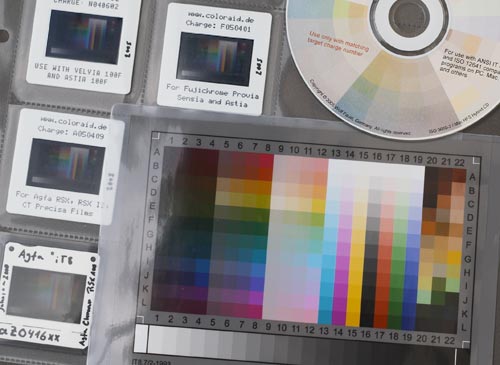
IT8 Target
To calibrate an image input device, special reference targets are required. They contain many colored patches with different brightness levels (densities). They are available as transparent slides and as reflective reference prints. These references are called IT8 targets.Each target has an associated reference file containing the expected measurement values for every individual color or grayscale patch. Calibration only works with the exact reference file belonging to the specific IT8 target.
In addition, software is required that can compare the reference values from the target manufacturer with the measured values of the image input device being calibrated and create a so-called profile. This is a file with the extension .icc or .icm. It contains information about how the measurement results of the scanner or camera should be interpreted.
During profiling, the behavior of an image input device is measured. For this purpose, a target is scanned or photographed and the unprocessed result is compared with the reference file. The calibration software determines the deviations from the reference values and creates an ICC profile from this information with the file extension .icc. In theory, this profile is only meaningful for one specific image input device.
Scanners whose light sources do not have a stable light characteristic due to usage and aging should occasionally be recalibrated. This includes the older Polaroid Sprintscan 35 Plus film scanners and many flatbed scanners using replaceable fluorescent lamps. Their light is not constant because its characteristics gradually change as the fluorescent tube ages. Therefore, occasional recalibration is necessary. Scanners with LED illumination generally require new profiling much less frequently.
Does this also apply when scanning with a digital camera? Unlike scanners, digital cameras do not work with a constant illumination source. The lighting conditions vary depending on the shooting situation: artificial light, mixed light, daylight at different times of day, changing sun positions, different levels of cloud cover, and so on. The automatic white balance used by digital cameras to compensate for these variations often works quite well. However, those who work with raw files to achieve optimal results and want to influence the interpretation of the data can also consider profiling their camera under different shooting conditions.
This only makes sense if the image processing software can use the profile. An example is digitizing films with a VALOI easy35 v2 using a digital camera and processing the images with VueScan or SilverFast HDR.
Targets with reference files historically came from various manufacturers such as Fuji, Kodak and LaserSoft Imaging. Today, new IT8 targets are available, for example, from Wolf Faust. Older Agfa Arcus 1200 scanners are still offered on the Internet and some include a Color Tune package. It contains a transparency target (slide) and a reflective target (print) with the corresponding reference files. Other scanners from Linotype and Umax were also delivered with calibration sets. However, such targets are already quite old, so it is uncertain whether the colors have remained stable.
Every IT8 target has a name. It consists of a combination of letters and numbers. Reference files can be found on a data carrier. The correct one must be selected. The target named zb09879 belongs to the reference file zb09879.txt. The print is scanned again and the color values are compared with the reference file.
Why Profiling Is Useful
A scanner initially only provides measurement values. These values do not automatically correspond to the actual colors of the original. An ICC profile describes the deviations of the device and enables the software to convert the measurement values into correct color values.
A profile does not create "more beautiful" colors and does not replace image editing. It simply ensures that the existing colors are interpreted as accurately as possible.
Profiling with VueScan
Creating Profiles with IT8 Targets: Scanner or Digital Camera
- Set 'Input|Task' to 'Profile scanner'
- Copy the reference file belonging to the IT8 target into the VueScan directory and rename it to 'scanner.IT8'
- Start 'Preview'
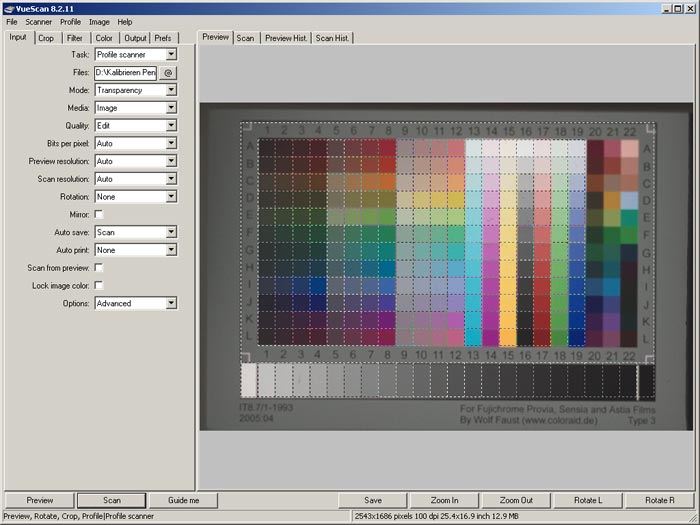
- The color chart appears in the Preview window. It must be correctly oriented and must not be scanned mirrored or rotated. The grayscale strip is located at the bottom.
- A dashed frame with many dashed outlined fields appears over the preview image. Adjust the outer edges with the mouse so that the mask is positioned over the color and grayscale patches as shown in the example. If the target is tilted, it must be repositioned and a new Preview must then be performed.
- Start 'Preview' again.
- Select the command 'Profile|Profile scanner' from the menu bar.
- The ICC profile is saved under the name 'scanner.icc' in the VueScan directory.
Profiling with VueScan
Creating profiles with IT8 targets: Scanner or digital camera
- Set 'Input|Task' to 'Profile scanner'
- Copy the reference file belonging to the IT8 target into the VueScan directory and rename it to 'scanner.IT8'
- Start 'Preview'
- The color target appears in the Preview window. It must be correctly aligned and must not be scanned mirrored or rotated. The grayscale strip is located at the bottom.
- A dashed frame with many outlined fields appears over the preview image. Adjust the outer borders with the mouse so that the mask is positioned over the color and grayscale patches as shown in the example. If the target is tilted, it must be repositioned in the scanner and a new Preview must be performed.
- Start 'Preview' again.
- Select the command 'Profile|Profile scanner' from the menu bar.
- The ICC profile is saved under the name 'scanner.icc' in the VueScan directory.
The file should be renamed so that it can be clearly identified. For example: 'nikon-coolscan5000.icc' for the Nikon Coolscan 5000.
To use the profile, the following settings are required:
- Set 'Color|Scanner color space' to 'ICC profile'
- Enter the name and location of the ICC file in 'Color|Scanner ICC profile'
The settings in the 'Color' tab do not influence profile creation. To verify this, 'Color|Color balance' should be set to 'Neutral'. This displays the colors of the target as accurately as possible.
Creating profiles with IT8 targets: Printer
'Creating a printer profile' means determining the exact color characteristics of a printer. This profile applies to a specific type of paper and is limited to a specific printer setting. During this process, the IT8 target is scanned again using a profiled scanner and then printed. The printout is scanned again and the color values are compared with the reference file. From these deviations, VueScan creates a profile that can be used for a specific printer with constant ink characteristics and a specific paper type. If another type of paper is used, the colors will probably not be correct. A separate profile can be created for each paper type. The following steps are performed:
1. Profile the scanner (see above)
2. Set 'Input|Task' to 'Make IT8 target'
3. Press the 'Scan' button
4. Place the printout into the scanner
5. Set 'Input|Task' to 'Profile printer'
6. Press the 'Preview' button
7. If necessary, rotate the preview image so that the grayscale strip is at the bottom and the letters and numbers can be read correctly.
8. Adjust the crop area to match the IT8 target image. If the target is tilted, it must be repositioned in the scanner and a new Preview must be performed.
9. Select the command 'Profile|Profile printer' from the menu bar.
10. The ICC profile is saved as the file 'printer.icc' in the VueScan directory.
This file should be renamed so that it can be clearly identified, for example: canon-i865-glossy270-tetenal.icc. The name contains the printer (Canon i865) and the paper type (270 grams per square meter, glossy, Tetenal).
To apply the profile, the following VueScan settings are required:
1. Set 'Color|Printer color space' to 'ICC profile'
2. Enter the name of the ICC file in 'Color|Printer ICC profile'
VueScan normally reads and stores printer ICC profiles using the file name 'printer.icc'. Alternatively, the file name of the ICC profile can be entered under 'Color|Printer ICC profile'.
Various printer applications can work with ICC profiles. The ICC profile(s) can be copied into the appropriate folders and are then available to other applications as well. This is a very useful function that was previously reserved for professional workflows and was often expensive. Creating profiles with IT8 targets: Color negatives
'Creating a film profile' means characterizing the color reproduction characteristics of a specific color negative film under defined exposure conditions.
To do this, an IT8 target is photographed. The illumination must be very even. The target must not show reflections. Either a matte print can be used, or a transparent IT8 target can be photographed with a macro lens while being illuminated from behind. This process can be repeated under different lighting conditions. The resulting profiles should be named accordingly, for example: Kodak-Ektar-25-daylight-noon-blue-sky.icc or Kodak-Ektar-25-noon-heavy-clouds.icc This makes it possible to determine the characteristics of a film under different lighting conditions. The use of negative film profiles included in scanning software often produces disappointing results because these profiles were created under standardized lighting conditions (diffuse light, 5500 K), which usually do not correspond to the actual lighting conditions when the photographed negatives were exposed.
Anyone who seriously works with this subject should always have an IT8 target available and use it for images created under different shooting conditions. When photographing the target, make sure that it appears rectangular on the film. The following steps are required:
1. Create the profile of a scanner (see above)
2. Set 'Input|Task' to 'Profile film'
3. Rename a copy of the IT8 reference file to 'film.IT8' and copy it into the VueScan directory.
4. Press the 'Preview' button.
5. In the preview image, the grayscale strip must be at the bottom. The letters and numbers must not be mirrored.
6. Adjust the size of the crop area to match the IT8 target image. The target may need to be repositioned in the scanner. In this case, a new Preview must be performed.
7. Select the command 'Profile|Profile film' from the menu bar.
8. The ICC profile is saved as the file 'film.icc' in the VueScan directory.
This file should be renamed so that it can be clearly identified, for example: Kodak-Ektar-25-daylight-noon-blue-sky.icc
To use the film profile:
1. Set 'Color|Film color space' to 'ICC profile'
2. Enter the name of the ICC file in 'Color|Film ICC profile'
Note:
The calibration targets consist of photographic material. They are now very stable in terms of color and can be used for several years if stored correctly (cool and dark, but not damp). Over time, however, changes must be expected. Normally, such targets become unusable and should be replaced. There is one exception: Assume that many slides were photographed on a specific film type in the past, for example in the 1990s, and that an IT8 target made from the same material has been stored under the same conditions as the slides. In that case, the target will have undergone very similar aging processes as the photographic material. For scanning this slide series, the scanner can be profiled using the old target in order to take these changes into account as accurately as possible. Targets should therefore be preserved together with contemporary archival material made from the same or similar photographic stock and not discarded. The targets should be removed from their possibly unsuitable original packaging and stored in the same type of sleeves as the rest of the photographic material. Only this ensures similar aging conditions.
Many profiles can be created, so it is useful to create a separate subfolder in the VueScan folder for storing ICC profiles. Immediately after profiling, the ICC profile is stored in the VueScan folder and has the name scanner.icc. The file should receive a meaningful name such as: nikon-coolscan-5000-sensia.icc or Pentax-ds-sunny-daylight.icc or Pentax-DS-slide-duplication.icc The names should make it possible to clearly identify the corresponding scanner, camera, and shooting situation.
Table of Contents:
General
IntroductionCalibration
Scanning black-and-white film
Scanning color negatives
Scanning slides
Identifying film types
Tabs
SourceCrop
Filter
Color
Output
Settings
© Thomas Gade | photoinfos.com | ISSN 3054-4769 (Online). Unsere Texte und Bilder sind urheberrechtlich geschützt. Jede Nutzung ist nur mit schriftlicher Erlaubnis des Verfassers gestattet und stets honorarpflichtig.