VueScan Tab 'Preferences'
Thomas GadeIndex
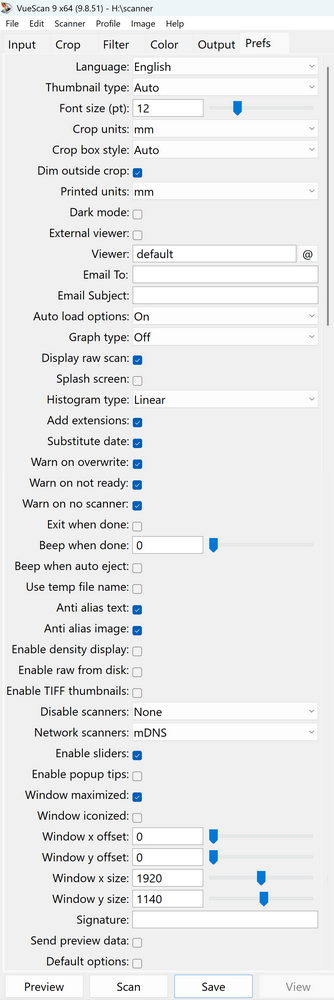
This tab contains a number of important settings, as well as some options whose purpose is not always immediately clear.
Language
Select either the default language or choose a custom one from the menu.
Font size
Controls the font size used within VueScan.
Crop units
Defines the unit of measurement used in the “Crop” tab. Options include pixels, mm, cm, or inches.
Print units
Specifies the units for print width and height: mm, cm, inches, pica, or points. Millimeters are commonly used in Europe.
External viewer
If enabled, scanned images will be opened in an external image viewer.
Viewer
The default setting (“default”) uses the system’s standard image viewer. You can also select any installed program. If you want images to open directly in Photoshop after scanning, set photoshop.exe as the external viewer.
External text editor
OCR text files are opened in the text editor defined under “Text editor.”
Text editor
Defines which program is used to open scanned OCR text files. The default setting is “default.”
Graph type
The following overlays can be displayed: RAW (histogram), B/W (histogram with adjustable black and white points), Tone Curve (tone curve with two adjustable control points), and Image (histogram of the selected image area).

Action button 1/2/3/4
Some scanners have hardware buttons. These settings define their function. Disabled by default and usually best left unchanged unless needed.
Auto refresh
VueScan normally updates the preview or scan after every change. This can be annoying. If so, disable this option and use the “Refresh” button instead.
Show raw scan
Displays the raw scan data while scanning.
Show positive
Important when scanning negatives.
Splash screen
Displays a startup image. Purely cosmetic—recommended to disable.
Histogram type
Defines how the histogram’s Y-axis is displayed (linear, square root, or logarithmic). Default is “Linear.”
The top histogram shows data before color adjustments, the bottom one after.
Animate crop box
Determines whether the crop frame blinks.
Coarse crop box
Enable this option.
Add extensions
Automatically appends file extensions (.tif, .jpg, .pdf, .txt, .bmp). Saves time and is enabled by default.
Add date
Adds date and time information to filenames.
Example: “@.jpg” → “Scan-YYMMDD-0001+.jpg”.
Placeholders: YYYY, YY, MM, DD, HH, MM, SS.
At least three date/time components are required.
Warn on overwrite
Displays a warning before overwriting existing files. Enabled by default.
Warn if not ready
Shows a warning if the scanner or raw file is not available.
Warn if no scanner
Displays a warning if no scanner is connected.
Exit when done
Closes VueScan after a scan is completed. Disabled by default.
Beep when done
Plays a sound when a scan finishes.
Beep on eject
Plays a sound when media is automatically ejected.
Use temporary file names
Uses “.tmp” file extensions while saving files. Useful for automated workflows that monitor folders.
Text smoothing
Enables anti-aliasing for 1-bit images. Leave enabled.
Image smoothing
Enables anti-aliasing for grayscale and color images. Leave enabled.
Enable density display
Shows a densitometer when moving the cursor over the image while holding the CTRL key.
Raw from disk
Enables loading of previously saved raw scan data.
TIFF thumbnails
Disable scanner
Useful when running multiple instances of VueScan simultaneously (e.g. scanning and processing in parallel).
Show sliders
Shows or hides slider controls.
Show tooltips
Displays short descriptions when hovering over buttons.
Image buffer (MB)
Defines how much memory VueScan uses for previews and scans, depending on resolution and color depth.
Maximize window / Minimize window
Position X/Y – Size X/Y
Stores window size and position.
Default options
Resets all settings to their defaults.
Days between calibrations
Specifies how often the scanner should be recalibrated. Especially important for older scanners with fluorescent lamps.
Table of Contents:
General
IntroductionCalibration
Scanning black-and-white film
Scanning color negatives
Scanning slides
Identifying film types
Tabs
SourceCrop
Filter
Color
Output
Settings