VueScan - 'Filter' Tab
Thomas Gade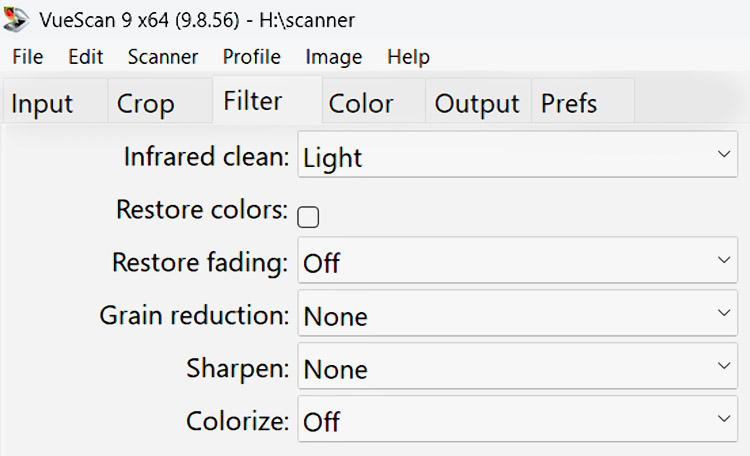
Index
This tab contains functions such as Infrared (IR) Cleaning, Restore Colors, Restore fading, Grain reduction, Sharpen and Colorize. The filter settings affect the output of TIFF, JPEG, and PDF files as well as images in an index. They do not affect raw data, although Infrared Cleaning and Grain Reduction can be applied if 'Output|Raw output with' is set to 'Save'.
Infrared Cleaning
Some scanners have an additional infrared channel alongside the red, green, and blue channels. This channel helps detect scratches, fingerprints, and dust on the original. The method works with most color slides and almost all color negatives. Kodachrome films are only partially suitable. Unfortunately, defects on conventional black-and-white films cannot be reliably distinguished from the film grain. Therefore, Infrared Cleaning is not suitable for these films. However, it does work with black-and-white films developed using the C-41 color negative process, such as Ilford XP2 and Kodak TC400N.
VueScan offers the settings No, Light, Medium, and Heavy. In most cases, 'Light' is the appropriate choice.
This setting is available only if the scanner is equipped with an infrared light source. Such scanners are usually marked with the letters 'ICE'. ICE stands for the infrared-based defect detection and correction technology developed by Applied Science Fiction. VueScan does not use the term ICE and instead implements its own version of this process. Depending on the scanner model, SilverFast Ai uses either ICE or iSRD. This is most likely due to patent licensing issues.
Infrared-based cleaning is an excellent tool. Scanners without this feature should no longer be considered for digitizing color film.
Restore Colors
This function is used to restore faded or shifted colors. Some photographs and films develop a strong color cast after long-term storage. The aim is to restore the original balance between the red, green, and blue color channels. The best results are achieved when scanning at high resolutions.
When this setting is enabled, the selected film type on the 'Color' tab is ignored.
Use this feature with caution. It can produce poor results in some cases.
Restore Fading
This setting is also used to compensate for color changes in film over time. The color dyes fade at different rates. Slide films tend to develop a reddish cast as they age, while color negative films usually shift toward cyan.
When this setting is enabled, the selected film type on the 'Color' tab is ignored.
Note: 'Restore Fading' is an interesting tool that can produce very good results. Even better is Kodak's ROC Pro software, which can deliver spectacular image improvements as part of post-processing. For images with severe color shifts, 'Restore Fading' is useful as an initial correction that can later be refined with ROC Pro.
Reduce Grain
Digital images often exhibit a fine speckled structure caused by image noise. The available settings are 'No', 'Light', 'Medium', and 'Heavy' to reduce this noise.
It is generally not recommended to use this function, as programs such as Noise Ninja and Neat Image produce better results.
Sharpen
Disable this option! Image sharpening should be one of the final steps in image processing. It is better performed in an image editing application rather than in VueScan.
Exception: If originals are scanned for direct PDF output or immediate printing, enabling 'Sharpen' may be useful. Experiment to determine the best setting.
Colorize
The Colorize feature for black-and-white photographs was added in 2025. To use this function, VueScan first needs to download an AI model. The quality of the results varies considerably. Some images are colorized poorly, while others produce surprisingly good results.
Table of Contents:
General
IntroductionCalibration
Scanning black-and-white film
Scanning color negatives
Scanning slides
Identifying film types
Tabs
SourceCrop
Filter
Color
Output
Settings