Scanning with VueScan
2014 / 2026 © Thomas GadeTable of Contents
VueScan is scanning software that is compatible with a wide range of scanners. It supports flatbed scanners, film scanners, and document scanners from many different manufacturers.
In addition, VueScan processes RAW files from digital cameras, includes OCR text recognition, and creates TIFF, JPG, and PDF files. Scanners, cameras, monitors, and printers can be calibrated using ICC profiles. The program includes a universal driver for numerous scanners, making the original manufacturer's software unnecessary in many cases. VueScan is available for Linux, Windows and macOS.
The software has long been popular not only for its versatility and extensive feature set, but also because it was affordably priced.
Unfortunately, the pricing policy has changed. Click here to learn more about it.
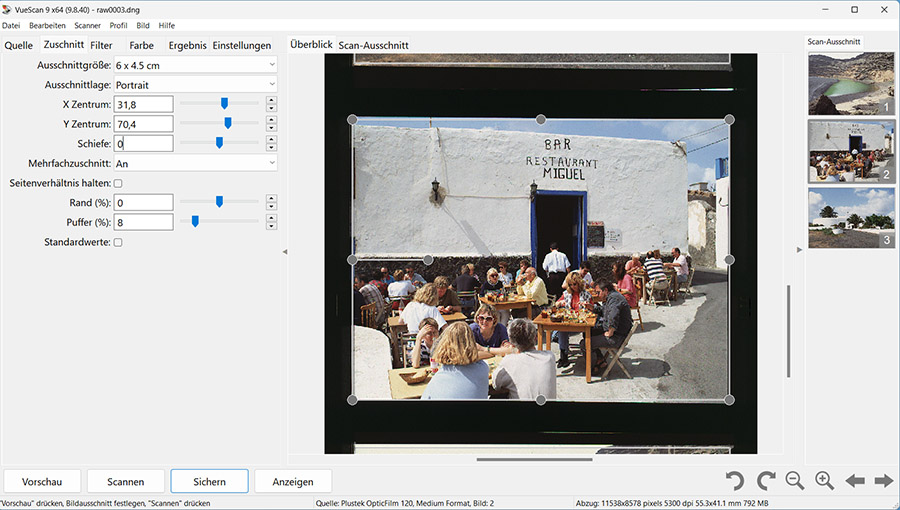
User interface, from left to right: tools, image view, automatically detected images
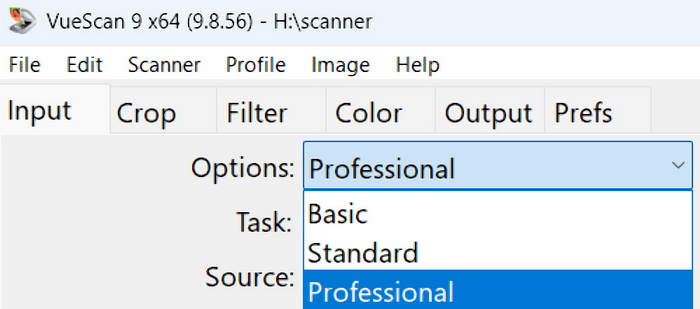
The third row contains a menu with six tabs for all settings. The first item, Input, offers three modes: Basic, Standard, and Professional. For scanning film, select Professional to enable all available settings.
Depending on the scanner or other image source being used, the VueScan tabs display different options. If a scanner does not support certain settings, the corresponding controls are not shown. Each tab is described in detail on a separate page:
Input
Crop
Filter
Color
Output
Preferences
Bottom Bar
In earlier versions, the bottom bar looked different from today's design. Since there are reasons to continue using older versions - for example, when scanners with SCSI or FireWire connections are only compatible with older computers and Windows XP - we show both the bottom bar of an older version and that of a current version.

1. Older bottom bar. The Refresh button is particularly useful. After scanning, the raw data remains in the cache, allowing VueScan to create any number of different versions based on changed settings without having to scan again. Clicking Refresh updates the image to reflect the new settings.

2. In current versions (2026), the bottom bar has a simpler appearance.
Preview performs a quick scan that allows you manually or the scanner automatically to crop the image(s) in the scan-area. After the quick scan you can rotate the images and adjust additional settings before creating the final scans.
Practical Applications
Introduction
Scanner Profiling / Calibration
Scanning Black-and-White Film
Scanning Color Negative Film
Scanning Slides
Identifying Film Types